Home > News > Industry News
If you work with high-end video production, you know the feeling. You set up a massive, beautiful LED wall. You expect deep, perfect blacks. But instead, when you feed it a black signal, you see annoying, faint gray bands stretching across your screen.
Even worse, these shadow lines do not move. They just sit there, ruining your contrast and distracting your audience.
This exact nightmare happened to a live events engineer recently. They posted their struggle on Reddit's community. Thankfully, the community stepped in, and they found a solid fix.
Here is a breakdown of what caused those mysterious black-screen lines, how the community troubleshooted the issue, and how you can fix it if it happens to you.
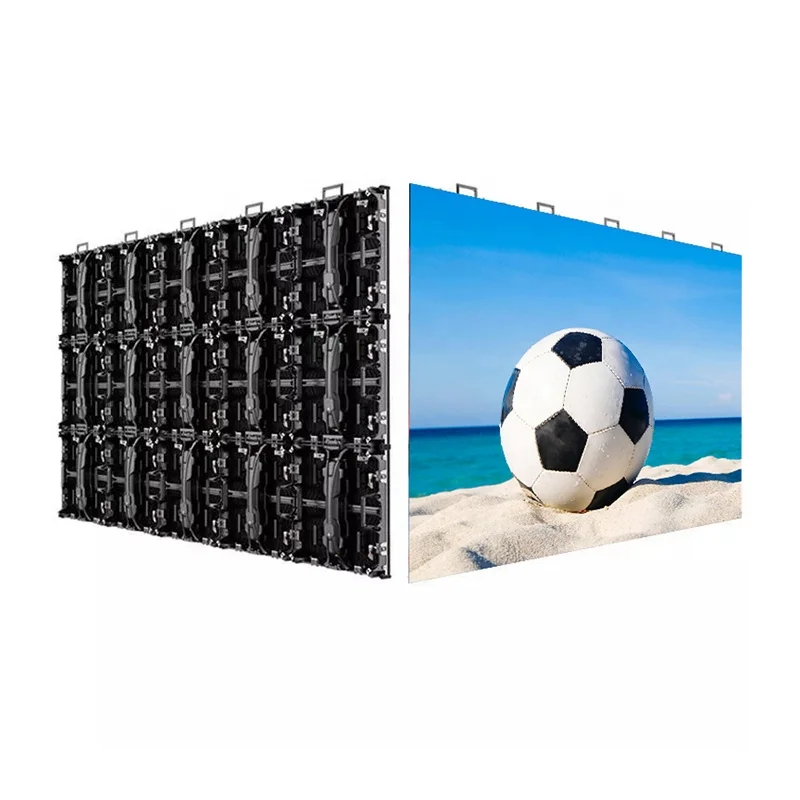
The user had a massive 4800x1920 LED wall hooked up to an H2 video splicer. Everything looked fine during bright scenes. However, as soon as the screen went black, static shadow bands appeared across the entire display.
The engineer tried everything to isolate the issue:
They bypassed the main switcher and plugged directly into the processor. The lines stayed.
They lowered the screen brightness from 100% down to 30%. The lines were still visible.
They double-checked the frame rate. The entire system ran perfectly at 59.94 Hz.
Because the lines did not move, the engineer suspected a resolution scaling issue between their 1080p source and the massive wall. So, they asked the internet for help.
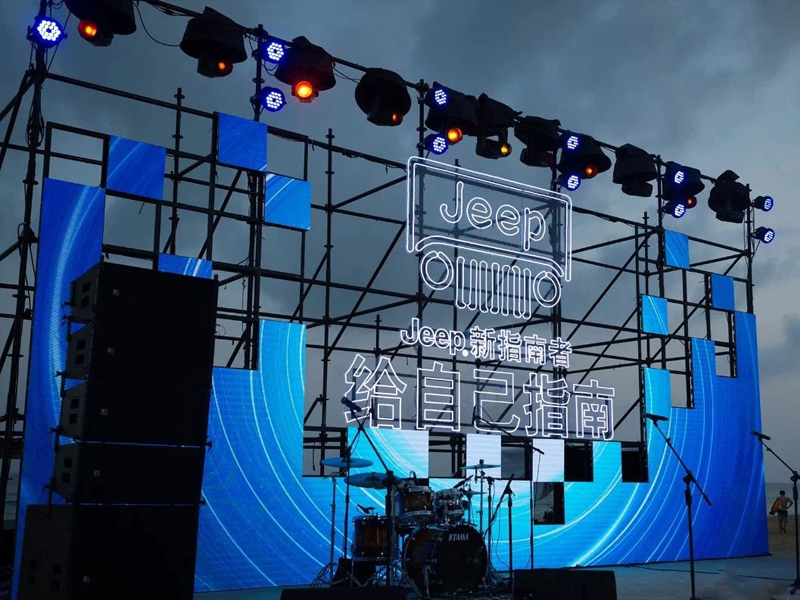
Video engineers jumped into the comments section with a few great theories. If your LED wall is showing weird artifacts on a dark background, you should check these three common culprits:
Multiple engineers pointed to color range settings. Computers often output a "Full" color range (0-255), while traditional broadcast gear uses a "Limited" or "Legal" range (16-235).
If your source device sends a limited range, your LED processor might interpret "pure black" as a light gray. To fix this, you can go into your Nvidia control panel or Mac software (like BetterDisplay) and manually force the output dynamic range to "Full." Alternatively, you can adjust the input gamma settings directly inside your NovaStar or Brompton processor.
Another pro suggested looking at the software configuration. If your screen mapping in software like NovaLCT or VMP does not perfectly match your physical LED panel layout, the processor can get confused. When the screen goes idle or shows black, the splicer might output partial, static data patterns that look like lines.
A few users guessed that "dirty power" or a bad ground loop caused the visual hum. However, the community quickly debunked this. Modern LED walls use digital data packets, not analog signals. Unlike old CRT monitors, digital LED panels do not show ground hum as faint, static bars.
So, what actually fixed the problem?
Ultimately, the original poster reached out directly to the LED manufacturer's technical support team. The manufacturer identified a glitch in the receiving card parameters and emailed over a brand-new configuration file.
The engineer loaded the new factory file into the processor, and the shadow lines disappeared instantly.
While the manufacturer did not specify the exact setting, the community suspected a wrong "frequency division" parameter inside the receiving cards. When these internal settings mismatch, the individual pixels fail to turn off completely during a black signal.
If you run into weird artifacts or gray bars on your LED wall, do not panic. Follow these simple steps to solve the issue:
Check your color space: Ensure your media server, PC, and processor all use the same color range (preferably Full 0-255).
Verify your mapping: Double-check your NovaLCT or VMP layout against your actual cable routing.
Call the manufacturer: If the lines stay even when you bypass your switchers, ask your vendor for the latest factory RCFGX or configuration files. A simple software refresh can save your event.
 EN
EN
 AR
AR
 BG
BG
 HR
HR
 CS
CS
 DA
DA
 NL
NL
 FI
FI
 FR
FR
 DE
DE
 EL
EL
 HI
HI
 IT
IT
 JA
JA
 KO
KO
 NO
NO
 PL
PL
 PT
PT
 RO
RO
 RU
RU
 ES
ES
 SV
SV
 TL
TL
 ID
ID
 SR
SR
 UK
UK
 VI
VI
 ET
ET
 HU
HU
 TH
TH
 TR
TR
 FA
FA
 AF
AF
 MS
MS
 GA
GA
 HY
HY
 AZ
AZ
 MN
MN
 UZ
UZ